Connect IBM Cloud
This guide walks you through connecting an IBM Cloud account to Onam using a Service ID API key with read-only IAM access. You create an access group holding Viewer/Reader policies, add a Service ID to it, generate an API key, and enter the key in the Onam console. The connection is read-only: Onam never makes changes to your IBM Cloud environment.
Time to complete: ~15 minutes. IBM Cloud knowledge required: IAM access groups, policies, and API keys.
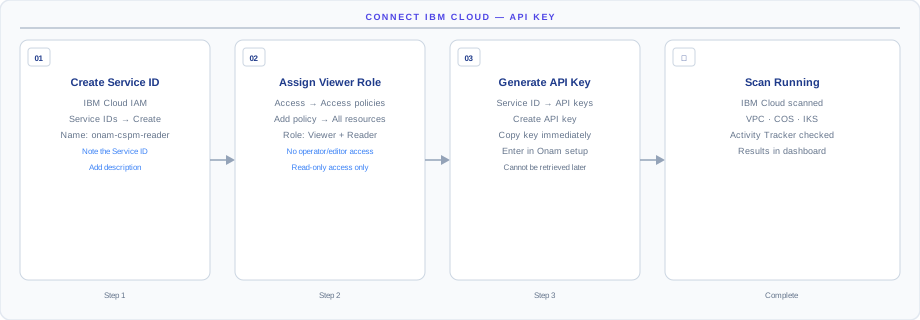
How the connection works
The diagram above shows the connection model end-to-end. Onam connects to IBM Cloud via a Service ID inside an Access Group that holds read-only policies. You create the Access Group, attach the policies, create the Service ID, generate an API key, and enter the key in the Onam console — Onam then exchanges the API key for a short-lived IAM Bearer token and reads resource configurations through the IBM Cloud APIs.
- Read-only policies only — Viewer (platform) and Reader (service) roles across IAM-enabled services. No write actions are possible.
- Scoped to the account you grant — the Access Group's policies determine Onam's reach.
- API keys can be rotated at any time — Service ID API keys are independent of human user accounts, so they survive staff changes.
How the connection stays read-only: the Access Group grants only IBM's Viewer platform role and Reader service role — neither contains a write, delete, or configuration action, and IBM Cloud IAM enforces that on every call. The API key itself is exchanged for Bearer tokens that expire within the hour, and the stored key (AWS Secrets Manager, KMS-encrypted) can be revoked in the IAM console at any time.
Before you begin
- An IBM Cloud account with IAM Administrator access
- The
ibmcloudCLI installed and logged in (optional — console steps are also provided) - An Onam account with at least the
tenant_adminrole
Step 1 — Create an access group with read-only policies
Install and log in to the IBM Cloud CLI (optional)
# Install IBM Cloud CLI
curl -fsSL https://clis.cloud.ibm.com/install/linux | sh

# Log in
ibmcloud login --sso

# Target your account
ibmcloud account show
Create the access group (Console)
- Open IBM Cloud IAM → Access groups
- Click Create
- Name:
CspmScanners - Description:
Read-only access for Onam scanner - Click Create
Assign read-only policies (Console)
IBM Cloud uses fine-grained IAM policies per service. Assign Viewer (platform) and Reader (service) roles:
- Open the
CspmScannersaccess group - Click Access → Assign access
- Select All Identity and Access enabled services
- Platform role: Viewer. Service role: Reader
- Click Add → Assign
- Repeat for All Account Management Services with platform role Viewer
Create the group and policies (CLI)
ibmcloud iam access-group-create CspmScanners \
  --description "Read-only access for Onam scanner"

# Viewer + Reader on all IAM-enabled services
ibmcloud iam access-group-policy-create CspmScanners \
  --roles Viewer,Reader \
  --service-name "*"

# Viewer on account management services
ibmcloud iam access-group-policy-create CspmScanners \
  --roles Viewer \
  --account-management
Step 2 — Create a Service ID and API key
Service IDs are non-human identities for programmatic access — the IBM Cloud equivalent of AWS IAM roles for applications.
Using the IBM Cloud Console
- Navigate to IAM → Service IDs
- Click Create
- Name:
cspm-scanner. Description:Onam read-only scanner - Click Create
- Open the
CspmScannersaccess group, click Service IDs → Add service IDs, and selectcspm-scanner - Open the
cspm-scannerService ID and click API keys → Create - Name:
cspm-api-key, then click Create - Download or copy the API key value — it cannot be retrieved again
Using the IBM Cloud CLI
# Create Service ID
ibmcloud iam service-id-create cspm-scanner \
  --description "Onam read-only scanner"

# Get Service ID
SERVICE_ID=$(ibmcloud iam service-id cspm-scanner --uuid -q)
echo "Service ID: $SERVICE_ID"

# Add Service ID to access group
ibmcloud iam access-group-service-id-add CspmScanners $SERVICE_ID

# Create API key for Service ID
ibmcloud iam service-api-key-create cspm-api-key $SERVICE_ID \
  --description "Onam scanner API key"

# The API key value is shown once — save it immediately
The API key value is shown exactly once. If you lose it, create a new key and delete the old one — there is no recovery path.
Step 3 — Connect and run your first scan
Find your Account ID
# Get Account ID
ACCOUNT_ID=$(ibmcloud account show --output json | jq -r '.account_id')
echo "Account ID: $ACCOUNT_ID"
Or in the IBM Cloud Console: click your account name in the top bar → Manage → Account → Account settings.
Connect in the Onam console
- In the Onam console, navigate to Onboarding → Connect Cloud Account
- Select IBM Cloud
- Fill in the credential fields (table below)
- Click Validate Connection
| Field | Value |
|---|---|
| Account ID | from the step above |
| API Key | from Step 2 (shown once) |
| Home Region | e.g. us-south, eu-gb, ap-south |
| Account Alias | any friendly name |
Run your first scan
- Navigate to Onboarding → Cloud Accounts
- Click the account you just added
- Click Run Scan Now — the first scan typically completes in 15–60 minutes depending on account size
You receive an in-app notification and an email when the scan completes.
Multi-account setup (IBM Cloud Enterprise)
For IBM Cloud Enterprise accounts with multiple sub-accounts:
# List all accounts in the enterprise
ibmcloud enterprise accounts --all

# For each sub-account, create the same Service ID and API key
# using the sub-account context:
ibmcloud login --apikey $MASTER_API_KEY -c SUB_ACCOUNT_ID

# Then repeat Steps 1-3 in each sub-account
Each sub-account requires its own API key connected in the Onam console.
What gets scanned
Onam evaluates 15+ IBM Cloud services against 613 posture rules, plus 110 identity-focused CIEM rules — part of the 10,000+ rule registry spanning all seven supported clouds. New services are added on a quarterly cadence.
| Category | Services scanned |
|---|---|
| Compute | Virtual Server Instances · IBM Kubernetes Service (IKS) · Code Engine · Cloud Foundry Apps |
| Storage & Data | Cloud Object Storage · IBM Db2 · IBM Cloudant · IBM Databases for PostgreSQL · IBM Databases for Redis · IBM Databases for MongoDB |
| Networking | VPC Networks · Security Groups · Load Balancers · Direct Link · Internet Services WAF · Transit Gateway |
| Identity & Security | IAM Users and Service IDs · Access Groups and Policies · Key Protect · Hyper Protect Crypto Services · Secrets Manager · Activity Tracker · Security and Compliance Center |
| Monitoring | IBM Cloud Monitoring · IBM Log Analysis · Activity Tracker events · Flow Logs |
The same credentials also power behavioral threat detection: Onam's CDR engine ingests activity events delivered to Cloud Object Storage and correlates them into threat findings.
Troubleshooting and API key rotation
| Error | Cause | Fix |
|---|---|---|
BXNIM0109E: API key not valid | API key deleted or expired | Create a new API key in Step 2 |
Not Authorized | Service ID not in the access group | Add the Service ID to the CspmScanners group (Step 2) |
| Resources missing from specific regions | Region not selected | Add additional regions in: Onboarding → Edit Account |
| IKS clusters missing | Kubernetes service permission missing | Ensure the Reader role is assigned for the Kubernetes service |
| Key Protect keys not appearing | Key Protect Reader role missing | Add the Reader role for Key Protect in the Access Group |
| Activity Tracker events missing | Activity Tracker not provisioned | Provision Activity Tracker in your IBM Cloud account |
API key rotation
Rotate IBM Cloud API keys every 90 days:
# Create new API key
ibmcloud iam service-api-key-create cspm-api-key-new $SERVICE_ID

# Update in the Onam console: Onboarding → Cloud Accounts → Edit

# Delete old API key
ibmcloud iam service-api-keys $SERVICE_ID
ibmcloud iam service-api-key-delete OLD_KEY_UUID $SERVICE_ID
Next steps
- Connect Kubernetes clusters — add in-cluster visibility for your IKS clusters.
- CSPM — how the 613 IBM Cloud rules become prioritized findings.
- Compliance — map IBM Cloud findings to CIS, NIST, ISO 27001, and 78 other frameworks.
- Book a demo — walk through your first scan results with an Onam engineer.